
Foger Switch Pro Kit 30000 Puffs Complete Setup and Usage Guide
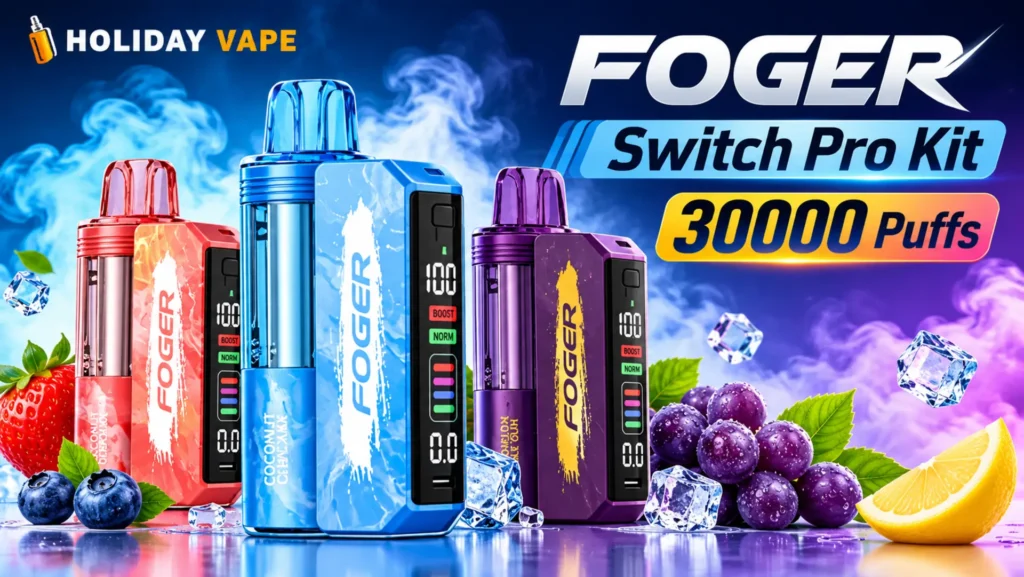
Understanding how a device is assembled, operated, charged, and maintained is important before using it. The Foger Switch Pro Kit 30000 Puffs features a modular design that combines a prefilled pod with a detachable rechargeable power dock. It also includes an OLED display, adjustable airflow, and two operating modes: Normal and Boost.
This guide explains the device’s main components, initial setup, display information, charging process, pod replacement, and general maintenance. It also answers common questions about its operation and features. Product specifications and performance figures can vary by version, so always check the packaging and manufacturer information for your particular kit.
Quick Start Guide for First-Time Users
The Foger Switch Pro Kit 30000 Puffs system uses a pod that connects magnetically to its compatible power dock. Before handling the device, check that the packaging is intact and that the components have no visible damage.The basic setup involves:
- Remove the pod and power dock from the packaging.
- Check for protective caps, seals, or packaging inserts and remove them as directed.
- Inspect the magnetic connection points for visible dirt or damage.
- Attach the compatible pod to the dock.
- Check the OLED display for device information.
- Review the operating instructions supplied with the product before use.
The system is draw-activated, so it does not require a conventional firing button for normal operation. Its display and mode controls provide additional information and settings. Follow the manufacturer’s instructions rather than forcing any component into place.
What’s Included in the Foger Switch Pro Kit?
The complete kit is designed around two main components: a rechargeable power dock and a prefilled pod.
Charging Dock
The dock is the reusable power component of the system. It connects magnetically to the pod and provides the main battery support for the assembled device. The dock also houses the OLED display and operating controls.
Prefilled Pod
The pod contains the prefilled e-liquid and heating assembly. It connects to the dock through magnetic contacts. When the pod reaches the end of its usable life, it is replaced rather than refilled.
Other Package Contents
Additional items may include product documentation, protective packaging, and charging accessories. Package contents can differ by retailer or product version, so check the box before assuming that a charging cable or another accessory is included.
How to Set Up the Foger Switch Pro Kit 30000 Puffs
Correct assembly helps prevent connection problems and makes it easier to understand the device’s controls.
Prepare the Device Before First Use
Start by removing the kit components from their packaging. Look for any protective silicone pieces or seals around the mouthpiece and connection areas. Remove them only where the product instructions indicate.Check the pod and dock for cracks, leaks, loose parts, or other visible damage. Do not use a damaged component.
Charge the Dock
Check the battery indicator before the first use. If the dock needs charging, use the USB-C connection and follow the charging instructions supplied with the device.Keep the charging port dry and free from dust. Avoid using a cable or power adapter that is damaged or incompatible with the manufacturer’s guidance.
Connect the Pod to the Dock
Position the pod over the magnetic connection area on the dock. Allow the magnets to guide the components together, and make sure the pod sits securely.Do not force the connection. If the components do not align, separate them and inspect the contact points for packaging material, dirt, or damage.
Check the Device Before Taking the First Draw
Once the components are connected, review the OLED display. Depending on the device version, it can show information such as battery status, puff count, and the selected operating mode.If the display does not respond or the device appears damaged, consult the supplied instructions or the manufacturer’s support information instead of repeatedly attempting to operate it.
Understanding Normal Mode and Boost Mode
The Foger Switch Pro includes two operating modes. They are designed to provide different output levels, which can affect estimated pod life.
Normal Mode
Normal Mode is associated with the device’s higher advertised puff-count rating. The stated maximum is up to 30,000 puffs under specified conditions.This figure is an estimate, not a guaranteed number. Actual results depend on factors such as draw duration, frequency of use, and device conditions.
Boost Mode
Boost Mode is designed to provide higher output. The advertised estimate is approximately 18,000 puffs, although actual results can vary.Higher output generally uses more e-liquid per draw, which can reduce the total number of puffs available from a pod.
How to Switch Between Modes
The device has a mode control associated with the power dock. The precise button operation can depend on the version, so use the instructions supplied with your kit.After changing a setting, check the OLED display to confirm which mode is selected. Avoid pressing controls repeatedly without understanding their function.
Understanding the Differences Between Both Modes
The main distinction is the balance between output and estimated pod life. Normal Mode carries the higher advertised puff estimate, while Boost Mode has a lower estimate because of its higher output.Neither figure should be treated as a promise of actual performance. The number of puffs depends on individual use and operating conditions.
How to Adjust the Airflow
The adjustable airflow feature changes how air moves through the device. The airflow control is separate from the operating-mode setting.
Understanding Airflow Settings
The airflow adjustment allows the opening to be changed between tighter and more open positions. A tighter setting restricts the amount of incoming air, while a more open setting allows greater airflow.
Tighter and More Open Airflow
A tighter airflow position creates more resistance when drawing air through the device. A more open position reduces that resistance.Airflow preference is subjective, and the available adjustment range may depend on the device version. Make changes gently and avoid forcing the airflow control beyond its normal movement.
Finding a Suitable Airflow Setting
Check the airflow control’s markings or instructions to understand its adjustment range. Keep the setting within the manufacturer’s recommended limits.Airflow can also affect e-liquid consumption and the device’s estimated pod life. For that reason, puff-count claims should not be considered independent of operating conditions.
How to Charge the Foger Switch Pro Kit
The rechargeable dock is an important part of the modular system. Keeping its battery and charging connection in good condition helps maintain normal device operation.
Charging the Dock
The Switch Pro dock uses a USB-C charging connection. Before connecting a cable, inspect the port for moisture, dust, or visible damage.Use a suitable charging cable and power source according to the manufacturer’s instructions. Place the device on a stable, dry surface while charging, and disconnect it if it becomes unusually hot or shows signs of damage.
Understanding Pod and Dock Charging
The dock and pod are separate components, and their batteries serve different purposes. Product listings describe an internal battery in the pod as well as a rechargeable dock.The dock is the main rechargeable power component. Do not assume that the pod can be charged independently through a separate cable. Follow the instructions for the specific version you own.
USB-C Charging Tips
- Use an undamaged USB-C cable.
- Keep the charging port dry.
- Avoid charging near water or excessive heat.
- Do not use a damaged power adapter.
- Disconnect the device if you notice unusual heat, swelling, or a burning smell.
- Follow the charging guidance supplied with the kit.
Important Charging Precautions
Do not leave a charging device unattended for extended periods. Avoid covering it with clothing or other materials that can trap heat.If the dock or charging port becomes damaged, stop using it and seek guidance from the manufacturer. Do not attempt to repair the battery yourself.
How to Replace the Foger Switch Pro Pod
The modular design allows the pod to be separated from the reusable dock. Replacement pods must be compatible with the Switch Pro system.
Signs That a Pod May Need Replacement
A pod may need replacement when its e-liquid is depleted, its performance changes noticeably, or it develops a leak or visible damage.The transparent pod design can help users observe the remaining e-liquid. Do not rely only on a puff counter to estimate how much liquid remains.
Removing the Used Pod
Separate the pod from the dock carefully. Avoid pulling or twisting it forcefully, as this can damage the magnetic connection points. If liquid is present around the connection area, handle the components carefully and clean the exterior only as directed by the manufacturer.
Connecting a Replacement Pod
Check that the replacement is specifically compatible with the Foger Switch Pro system. Align it with the dock’s magnetic contacts and allow it to connect naturally. After attachment, inspect the connection and check the display for normal operation. Do not use a pod that is cracked, leaking, or visibly damaged.
Checking the New Pod Before Use
Before operating a replacement pod, check its packaging, seals, and exterior condition. Confirm that the product is intended for your device model. Switch Pro pods are described as prefilled and non-refillable. Do not open the pod or add bottled e-liquid.
Understanding the OLED Display
The OLED display provides a convenient way to review information about the device. It helps users identify the current operating status without relying entirely on guesswork.
Information Shown on the Display
Product descriptions identify several types of information that may appear on the screen:
- Battery status
- Puff-count information
- Selected operating mode
The exact screen layout and available indicators can vary by version.
Understanding Battery and Device Indicators
The battery indicator helps show the remaining charge in the dock. If the displayed battery level becomes low, consult the charging instructions. The mode indicator helps identify whether Normal or Boost is selected. Reviewing the display after changing a setting can help prevent confusion about the current configuration.
What Does the 188 Display Mean?
The meaning of a number such as 188 should not be assumed without a confirmed explanation from the manufacturer. Display codes can have different meanings across product versions. If this number appears and the device does not operate normally, check the included instructions or contact the manufacturer’s support team. Avoid treating an unexplained number as a battery percentage, error code, or puff count without confirmation.
How Long Does a Foger Switch Pro Pod Last?
The product’s advertised maximum is up to 30,000 puffs in Normal Mode, with a lower estimated figure in Boost Mode. These numbers are performance estimates rather than guaranteed results.
Factors That Affect Pod Lifespan
Several factors can affect how long a pod remains usable:
- Draw duration
- Frequency of use
- Selected operating mode
- Airflow setting
- Storage and environmental conditions
- Remaining e-liquid and general pod condition
Longer draws and higher output can consume more e-liquid. As a result, actual pod life may be considerably different from the advertised maximum.
Usage Habits and Pod Performance
Puff-count estimates are based on testing conditions that may differ from everyday use. A puff counter does not measure every factor that affects the remaining e-liquid. The transparent pod can provide a more direct visual indication of the liquid level. Check it regularly and follow the manufacturer’s replacement guidance.
Signs of Reduced Pod Performance
Visible leakage, physical damage, unusual operation, or a depleted e-liquid supply are reasons to stop using a pod. Do not attempt to extend its life by opening, refilling, or modifying it.
Foger Switch Pro Kit Care and Maintenance
Basic care helps protect the device’s exterior and connection points. Maintenance should be limited to the procedures approved by the manufacturer.
Keep the Device Clean
Keep the outside of the dock and pod free from dust and residue. Use a soft, dry cloth for exterior cleaning. Do not immerse either component in water or apply cleaning liquids directly to the device.
Clean the Pod and Dock Connection Points Carefully
Inspect the magnetic contacts for visible debris or residue. If cleaning is permitted by the product instructions, use a clean, dry, non-abrasive material. Avoid scraping the contacts with metal objects or allowing moisture to enter the connection area.
Protect the USB-C Charging Port
Keep the charging port dry and free from lint or debris. Do not insert sharp objects into the port, and do not connect a cable if the connector appears damaged.
Store the Device Properly
Store the kit in a cool, dry location away from direct sunlight and excessive heat. Keep it away from water and places where it could be crushed or damaged. Keep all components and pods out of the reach of children and pets.
Avoid Excessive Chain Vaping and Extreme Temperatures
Repeated operation over short periods can increase heat and affect device performance. Allow the device to cool if it becomes warm, and stop using it if it becomes unusually hot. Avoid exposing the kit to freezing conditions, high temperatures, or rapid temperature changes.
Frequently Asked Questions
How do you turn on the Foger Switch Pro Kit?
The Switch Pro is described as draw-activated, so it does not use a conventional power button for normal operation. Connect the compatible pod to the dock and follow the product instructions.
How do you switch between Normal and Boost modes?
Use the mode control on the dock according to the instructions for your version. Check the OLED display to confirm the selected mode.
Can the pod be used without the charging dock?
Some product descriptions identify a small internal battery in the pod that allows limited standalone operation. However, the dock is the main power component of the modular system. Check the manufacturer’s instructions for your exact version before attempting standalone operation.
When should the Foger Switch Pro pod be replaced?
Replace the pod when its e-liquid is depleted, it is damaged, or it shows signs of leakage or abnormal operation. Use only a compatible replacement pod.
Can the Foger Switch Pro pod be refilled?
The pod is described as prefilled and non-refillable. Do not open it or add e-liquid.
How long does the device take to charge?
Charging time can depend on the power source, cable, battery condition, and device version. Follow the charging information supplied with your kit instead of relying on a universal time estimate.
What does 188 mean on the OLED display?
There is not enough confirmed information to assign a definite meaning to this display reading across all versions. Check the product manual or contact the manufacturer for clarification.
How can you maintain the device?
Keep the exterior and connection points clean and dry, protect the USB-C port, store the kit away from extreme temperatures, and replace damaged or depleted pods according to the manufacturer’s instructions.
Final Thoughts
The Foger Switch Pro Kit 30000 Puffs combines a detachable prefilled pod with a rechargeable power dock. Its main features include an OLED display, adjustable airflow, and Normal and Boost operating modes. Understanding how these components work together makes it easier to identify the device’s controls, charging requirements, and replacement process.
For accurate product information, always check the instructions and specifications supplied with the particular kit. Puff-count figures are estimates, and actual results can vary with operating conditions. Proper handling, careful storage, and attention to signs of damage are important parts of device maintenance.